In plain English
Running a local LLM means the model lives on your machine rather than in a cloud data center. The hard part used to be doing all the technical setup yourself. Today, three tools have taken that pain away: LM Studio, Ollama, and Jan. Each one lets you download a model, start it up, and chat with it — but they make very different choices about who they're for and how the pieces fit together.
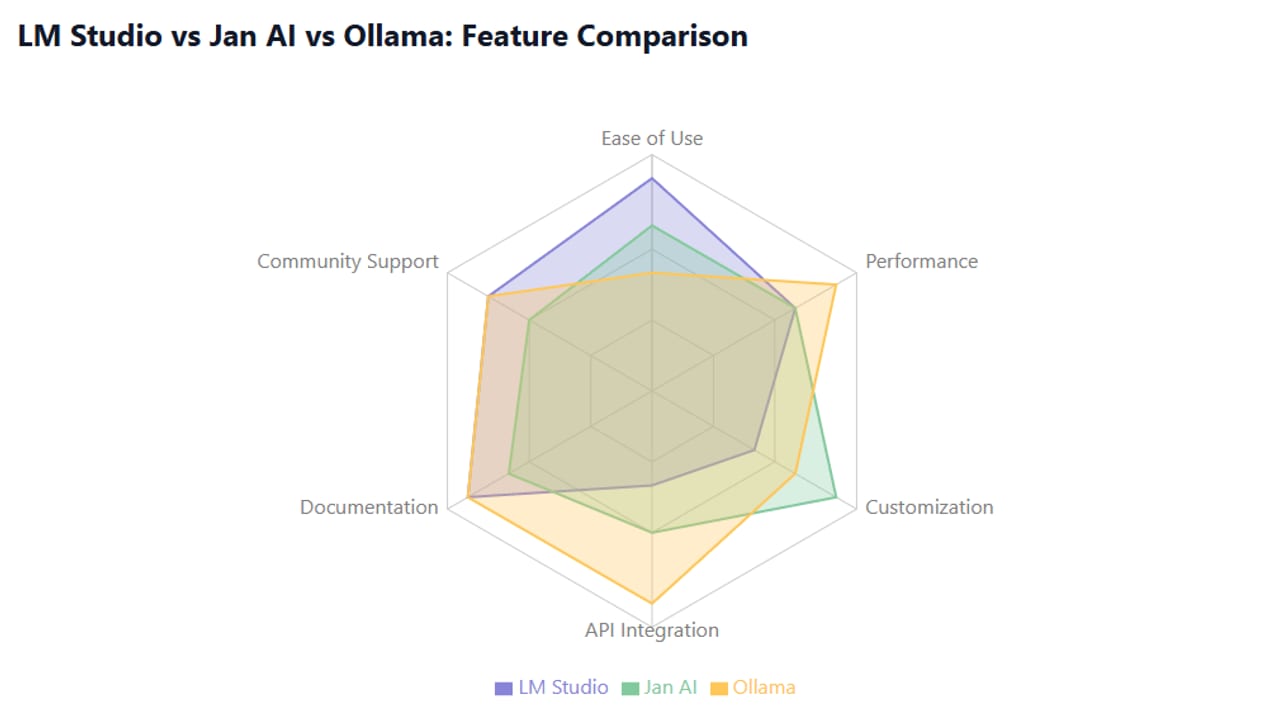
A useful analogy: imagine three ways to brew your morning coffee. LM Studio is a high-end espresso machine with a touchscreen — a beautiful appliance designed so you can pull a perfect shot without knowing anything about pressure or grind size. Ollama is a programmable kettle and a pour-over setup favoured by enthusiasts who want precise control and hate GUIs. Jan is a French press with a built-in thermometer and an extension tray you can bolt on — fully open, manually tweakable, and designed around the idea that you should own every piece of the process.
Why it matters
A year ago, getting a local model running was a multi-step ordeal: compile C++ from source, figure out CUDA flags, hunt for a compatible GGUF file. Now you can be chatting with a Llama 4 or Qwen 3 model in under five minutes. The bottleneck has shifted from can I even run this to which of these polished apps should I use. That is a genuinely good problem to have, and making the right choice saves real time.
The choice also has lasting consequences. If you are a developer who wants to call a local model from code just like a cloud API, you need a tool that stays running as a server in the background and exposes the right endpoints. If you are exploring models for the first time, you need a tool that surfaces which models exist and makes switching between them effortless. If your company has strict data policies, you may need a tool whose privacy guarantees are auditable in open source. None of the three tools excels at all of these equally.
How each tool works
Despite their different looks, all three tools share the same basic pipeline: they download a quantized model file (usually in GGUF format), load it into memory via llama.cpp, and then expose that model either through a chat UI, a local HTTP API, or both. The diagram below shows the architecture each app builds on top of that shared foundation.
LM Studio: the polished desktop app
LM Studio is a native desktop application for macOS, Windows, and Linux. Its central feature is a built-in model browser that lets you search and download thousands of models directly from Hugging Face without leaving the app. You pick a model, click download, and a few minutes later you are chatting in the built-in playground. LM Studio v0.3+ ships an lms CLI alongside the GUI, so you can script model loading or run in headless mode on a remote machine.
A dedicated Developer tab exposes an OpenAI-compatible local HTTP server. Your code points at http://localhost:1234/v1 and talks to the model exactly like it would talk to api.openai.com — same JSON, same endpoints. LM Studio also ships official Python and TypeScript SDKs (v1.0) for tighter integration. Recent versions added a side-by-side model comparison mode and RAG support, letting you load local documents and chat with them privately.
Ollama: the CLI-first server
Ollama has no GUI. Instead it installs as a background service and exposes a local REST API on port 11434. You manage models with terminal commands (ollama pull, ollama run, ollama list), and the service handles GPU detection, model loading, and memory management automatically. Its model library at ollama.com/library is curated and versioned using a name:tag scheme — for example, ollama pull llama4:scout or ollama pull qwen3:8b.
The API covers /v1/chat/completions, /v1/embeddings, and /v1/models, making it a drop-in replacement for OpenAI's client libraries in almost any language. Ollama v0.13+ also added an Anthropic Messages API compatibility layer and streaming tool calls. A key operational feature: Ollama automatically unloads a model from memory after a configurable idle period, which lowers the RAM footprint when you are not actively using it.
Jan: the open-source platform
Jan is a fully open-source (AGPLv3) desktop app powered by Cortex.cpp, its own inference backend that wraps llama.cpp but also supports ONNX and TensorRT-LLM engines. The local API server listens on port 1337 (OpenAI-compatible) and supports zero-config setup. Jan's distinguishing feature is its extension system — you can add new model providers, connect to remote APIs (OpenAI, Anthropic, Groq, Mistral), or integrate MCP tools, all from within the same app. It has no telemetry of any kind: the code is fully auditable and nothing leaves your machine unless you explicitly configure a remote model provider.
Side-by-side feature comparison
Here is how the three tools line up on the features that matter most to developers and power users.
| Feature | LM Studio | Ollama | Jan |
|---|---|---|---|
| Interface | GUI + CLI (lms) | CLI only | GUI + CLI (Cortex) |
| OpenAI-compatible API | Yes (port 1234) | Yes (port 11434) | Yes (port 1337) |
| Model browser / hub | Built-in (Hugging Face) | ollama.com/library | Built-in (Hugging Face) |
| AMD GPU (Windows) | DirectML / Vulkan | ROCm (Linux best) | Improving, Linux best |
| Apple Silicon | Metal (excellent) | Metal (excellent) | Metal (good) |
| NVIDIA GPU | CUDA auto-detected | CUDA auto-detected | CUDA auto-detected |
| Idle memory unload | No (model stays loaded) | Yes (configurable) | No |
| Extension / plugin system | No | No | Yes |
| Remote cloud APIs | No | No | Yes (via extensions) |
| Open source | No (freeware) | Yes (MIT) | Yes (AGPL-3.0) |
| Telemetry | Optional opt-out | None | None |
| RAG / file chat | Yes (built-in) | No (needs extras) | Partial |
| Side-by-side model compare | Yes | No | No |
| Mobile app | iOS / iPadOS | No | No |
Performance and when to use each one
Because all three tools use llama.cpp for GGUF models, token generation speed at the same model and quantization level is nearly identical. The real differences show up in overhead, startup time, and multi-model scenarios.
Ollama has the lightest idle footprint — roughly 100 MB of RAM when no model is loaded — because it unloads models between requests. It edges ahead by 2 to 5 tokens per second in concurrent-request scenarios where multiple clients hit the same server, owing to lower scheduling overhead. This makes it the right default for developer workflows where the model is called programmatically from code.
LM Studio keeps the loaded model resident in memory for as long as the app is open, which means zero reload latency between prompts. On Apple Silicon, LM Studio's aggressive Metal GPU memory offloading occasionally outperforms Ollama on the same hardware — one published benchmark on an M3 Ultra showed LM Studio at 237 tokens/s versus Ollama's 149 tokens/s on a small 1B Gemma model, though results vary by hardware and model. LM Studio's GUI overhead is around 500 MB at idle, making it heavier than Ollama but comparable to Jan.
Jan sits in the middle. Its Cortex.cpp backend supports additional engines like ONNX and TensorRT-LLM alongside llama.cpp, which can matter for users running quantized models on specific hardware. The GUI adds overhead similar to LM Studio, but the extension architecture means Jan can act as a single front-end for both local and cloud models — reducing the number of tools you need open at once.
- Beginners trying local AI for the first time
- Explorers who want to browse and compare many models
- AMD GPU users on Windows
- Anyone who wants RAG without extra setup
- Teams doing side-by-side model evaluation
- Developers calling a model from code
- CI pipelines and headless servers
- Low-memory setups that need idle unloading
- Anyone already living in the terminal
- Multi-model API servers for local apps
- Privacy-first users who want auditable open source
- Teams mixing local and cloud models in one UI
- Developers who want a plugin/extension ecosystem
- Organizations with strict no-telemetry policies
- Users who want to experiment with MCP tools
Quick decision guide
- You are completely new to local LLMs — start with LM Studio. The model browser and chat UI require no terminal knowledge.
- You are a developer who wants to call a local model from code — use Ollama. One command starts a server; swap your OpenAI base URL and nothing else changes.
- You need everything open source and zero telemetry — use Jan. The AGPLv3 license and no-telemetry policy are the strongest guarantees of the three.
- You run AMD on Windows — LM Studio's DirectML/Vulkan backend tends to work out of the box; Ollama's ROCm path is smoother on Linux.
- You want local plus cloud in one app — Jan's extension system lets you add OpenAI, Anthropic, Groq, and others without switching tools.
Going deeper
Once you have picked a tool, a few deeper topics are worth knowing about.
The headless / server use case
All three tools expose a local OpenAI-compatible API, which means any library built around the OpenAI SDK works without changes — just set base_url to your local port. For Ollama this looks like:
from openai import OpenAI

# Point the OpenAI client at your local Ollama server.
client = OpenAI(
    base_url="http://localhost:11434/v1",
    api_key="ollama",  # Ollama ignores the key, but the SDK requires a string.
)

response = client.chat.completions.create(
    model="llama4:scout",
    messages=[{"role": "user", "content": "Explain quantization in one paragraph."}],
)
print(response.choices[0].message.content)
The same pattern works for LM Studio (port 1234) and Jan (port 1337). If you are migrating existing code that calls the OpenAI API and want to test it locally without spending tokens, any of the three tools makes that a one-line change.
Model format compatibility and quantization tiers
All three tools primarily consume GGUF files — the compressed format produced by llama.cpp. A quantization suffix like Q4_K_M means the weights are stored at 4-bit precision using a particular compression scheme. Lower numbers use less VRAM and run faster; higher numbers retain more quality. The K_M variants (Q4_K_M, Q5_K_M, Q6_K) are generally the best quality-per-size sweet spot. Jan's Cortex.cpp additionally supports ONNX models and, on NVIDIA hardware, TensorRT-LLM for maximum throughput — a meaningful advantage if you are serving many users rather than just yourself.
Running on headless servers and in CI
Ollama is the clear choice for headless (no-display) environments like Linux servers and CI pipelines: it installs as a systemd service or a Docker container (docker run -d -p 11434:11434 ollama/ollama) and is controlled entirely via the HTTP API. LM Studio introduced a headless daemon called llmsterd (the core without the GUI) in v0.4+, letting it run on a Linux server or in CI and expose the REST API without the desktop app — useful if you prefer LM Studio's feature set but need server-side deployment. Jan is primarily a desktop app; its Cortex.cpp backend can be run as a standalone CLI server, but the tooling around it is less mature for production deployments than Ollama's Docker image.
The converging ecosystem
Because all three tools expose an OpenAI-compatible API, they are largely interchangeable at the integration layer — code written for one usually works against another with a port number change. The meaningful differences are in the user experience, the extension points, and the operations story. LM Studio has invested most in the GUI and model discovery experience; Ollama in the minimal, composable server; Jan in the open-source and extensible platform. The tools are also converging: LM Studio added a CLI, Ollama added an Anthropic-compatible API surface, and Jan gained MCP support. Staying current with each project's changelog pays off here, because the gap between them keeps narrowing.
FAQ
Is LM Studio completely free to use?
Yes. LM Studio is free for personal use with no subscription, usage fee, or hidden metering. All features — including the model browser, chat UI, local server, and SDKs — are available at no cost. It is freeware (not open source), so you cannot modify the source, but you pay nothing to use it.
Can I use Ollama without knowing the command line?
Ollama itself is terminal-only. However, many third-party GUIs — such as Open WebUI or Enchanted — sit on top of Ollama's API and give you a chat interface without any terminal work. If you want everything integrated in one app with no extra setup, LM Studio or Jan are easier starting points.
Do LM Studio, Ollama, and Jan support the same models?
Mostly yes. All three primarily run GGUF models from Hugging Face, so any model that exists as a GGUF file can be loaded into any of the three. Ollama's curated library at ollama.com/library makes model discovery easy via a pull command, while LM Studio and Jan let you browse Hugging Face directly from inside the app. Some very new models appear in Ollama's library within days of release.
Which local LLM app is best for privacy?
All three tools run entirely on your machine once the model is downloaded, so no prompts leave your device. Jan has the strongest privacy posture: it is fully open source under AGPLv3 with zero telemetry, so you can audit every line of code. LM Studio collects optional telemetry (which can be turned off), and Ollama collects none. For regulated environments where auditability matters, Jan's open-source nature is the clearest guarantee.
Is Ollama or LM Studio faster for running local models?
At the same model and quantization level, raw token speed is nearly identical because both use llama.cpp. Ollama has a slightly lower idle memory footprint and edges ahead in multi-client scenarios. LM Studio can outperform Ollama on certain Apple Silicon workloads due to its aggressive Metal memory offloading, but results vary by hardware and model. For most users the difference is not noticeable in day-to-day use.
Can I use these tools with existing OpenAI-based code?
Yes — all three expose an OpenAI-compatible REST API. You only need to change base_url to the local port (11434 for Ollama, 1234 for LM Studio, 1337 for Jan) and set any non-empty string as the API key. The chat completions, models, and embeddings endpoints work without any other code changes.