What Is Gemini CLI, in Plain English?
Gemini CLI is Google's open-source AI coding agent for your terminal. You type a task in natural language — "refactor this function", "write tests for this module", "why is my build failing?" — and the agent figures out a plan, reads your files, runs shell commands, and reports back, all without leaving your command line.
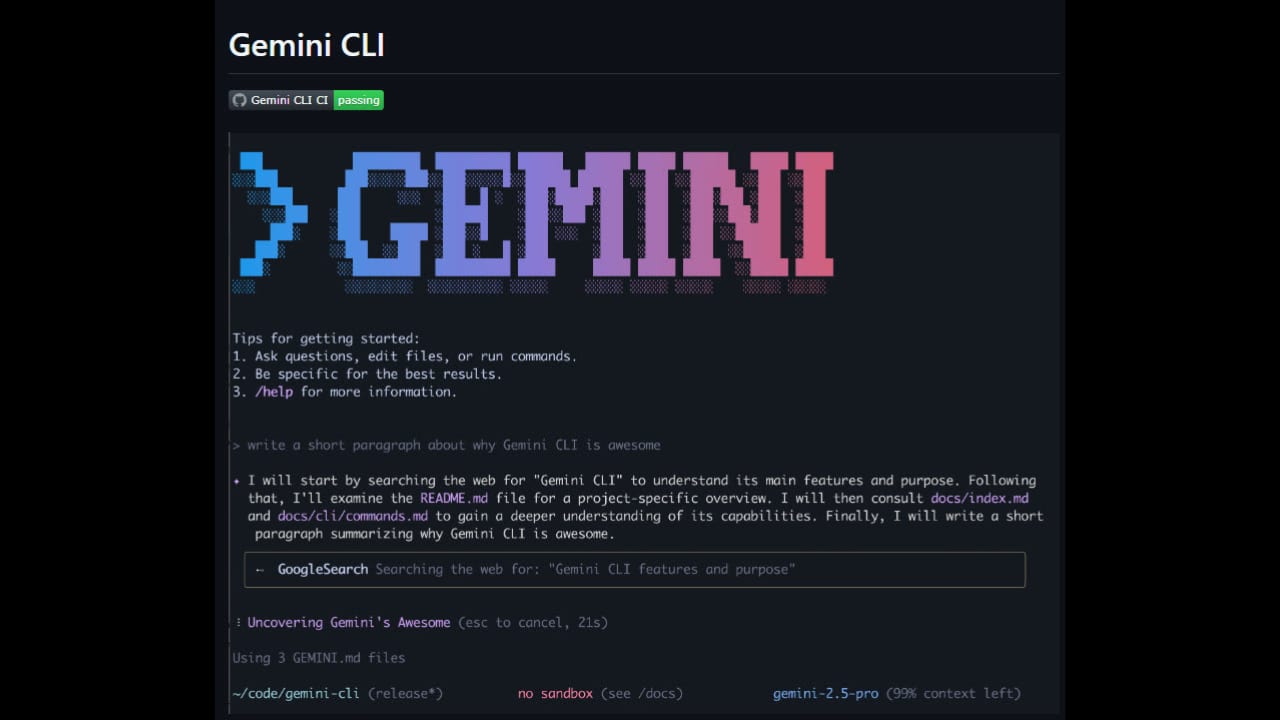
Think of it like hiring a very fast intern who lives inside your terminal. You hand them a task. They read the relevant files, look things up on Google, make changes, and show you the results. You stay in the driver's seat — you decide what to accept.
Google launched Gemini CLI on June 25, 2025, releasing it under the Apache 2.0 license — meaning anyone can read the source code, fork it, and contribute. Within a year it had accumulated over 100,000 GitHub stars, making it one of the fastest-growing developer tools of 2025.
Why Does Gemini CLI Matter?
Before tools like Gemini CLI, getting AI help with code meant either copy-pasting snippets into a chat window or buying into an IDE plugin. Both approaches have friction: you constantly shuttle context back and forth, and the AI never actually touches your files.
Gemini CLI solves this by running an agent loop directly in your shell. It can read and write files, execute terminal commands, search the web for context, and chain those actions together autonomously. A single prompt like "add pagination to this API and write a test" might cause it to read three files, write two new ones, and run your test suite — all in one go.
Why Builders Should Care
- Free tier — 1,000 requests per day and 60 requests per minute at no charge using a personal Google account, with no credit card required to start.
- 1 million token context window — you can feed an entire large codebase into a single prompt without chunking.
- Open source — the Apache 2.0 license lets you audit the code, self-host it, or modify it for your team's workflow.
- Google ecosystem hooks — built-in integrations with Google Search (for grounding), Google Cloud Shell, and MCP servers for BigQuery and Cloud Run.
- Extensible — MCP (Model Context Protocol) support means you can connect any custom tool, database, or internal API.
For developers who want to try an autonomous coding agent without a subscription, Gemini CLI is currently the most accessible entry point. You authenticate with a Google account you already have, and you're running tasks in minutes.
How Gemini CLI Works
At its core, Gemini CLI implements a ReAct loop — short for Reason and Act. You give it a task, and it alternates between thinking about what to do next and actually doing it, repeating until the task is complete or it needs your input.
Built-In Tools
Gemini CLI ships with a set of tools the model can invoke without any configuration:
- File system — read files, list directories, write or patch files in your project.
- Shell — execute terminal commands (build scripts, tests, linters, git operations).
- Web fetch — retrieve the content of a URL for analysis or documentation lookup.
- Google Search grounding — query Google and use real results to avoid hallucinated facts.
GEMINI.md Context Files
You can create a GEMINI.md file at the root of your project — similar to a CLAUDE.md for Claude Code. This file gives the agent persistent context: preferred conventions, forbidden patterns, project structure notes. Every session starts with this context loaded automatically, so you don't have to re-explain the same things every time.
MCP Extensions
MCP (Model Context Protocol) is an open standard for connecting AI agents to external tools. Gemini CLI supports both local and remote MCP servers, which means you can give the agent access to your database, your CI system, a Figma design file, or any internal API — all without modifying the core tool.
Gemini CLI vs Claude Code
Both Gemini CLI and Claude Code are terminal-native coding agents that use an agent loop to plan and execute multi-step tasks. The practical differences come down to cost model, code quality, and ecosystem fit.
| Feature | Gemini CLI | Claude Code |
|---|---|---|
| License | Apache 2.0 (open source) | Proprietary |
| Free tier | 1,000 req/day, 60 req/min (personal Google account) | No free tier — requires Anthropic subscription or API key |
| Context window | 1 million tokens | 1 million tokens (Max/Team/Enterprise) |
| Primary model | Gemini Pro / Flash (current generation) | Claude Sonnet / Opus (current generation) |
| Installation | npm (Node.js 20+) | npm |
| Google ecosystem | Native (Cloud Shell, BigQuery, Workspace MCP) | Via third-party MCP servers |
| Code quality (developer consensus) | Good for prototyping and exploration | Strong on large refactors and idiomatic code |
| Confirmation style | Streams terminal state; less interruption | Asks before each significant change |
The headline difference is cost to start. Gemini CLI requires no billing setup — just a Google account. Claude Code requires an active Anthropic subscription (Pro, Max, Team, or Enterprise) or direct API access through AWS Bedrock or Vertex AI.
For pure coding quality on complex, multi-file refactors, most developers in the community report Claude Code producing cleaner, more idiomatic results. But for quick prototyping, Google Cloud–heavy workflows, or any situation where you want to evaluate AI-assisted coding before committing to a paid plan, Gemini CLI is the natural starting point.
The Free Tier and Authentication Options
Gemini CLI offers three ways to authenticate, each with different limits:
- Personal Google account (Gemini Code Assist for individuals) — 1,000 requests per day, 60 requests per minute. No credit card. This is the zero-cost starting point.
- Google AI Studio API key — higher throughput on Flash-tier models; useful for scripting and automation where the personal quota is too low.
- Vertex AI — for teams and enterprise, with billing enabled. Removes most quotas and connects to Google Cloud IAM for access control.
The free tier's 1,000 daily requests sounds generous — and for interactive coding sessions it usually is. Heavy automation (batch test generation, large-repo sweeps) can exhaust it. When you hit the limit, the CLI returns a rate-limit error; you can either wait until the quota resets or switch to an API key.
Headless and Scripting Mode
Gemini CLI supports a headless mode that strips the interactive UI and lets you pipe prompts in from a shell script. This makes it usable in CI pipelines — for example, automatically summarizing a pull request diff or generating a changelog from commit messages.
# Install globally
npm install -g @google/gemini-cli

# Run interactively (first run prompts Google auth)
gemini

# Run a one-shot task (headless)
gemini -p "Summarize the changes in CHANGELOG.md in three bullet points"Going Deeper with Gemini CLI
Once you're comfortable with basic tasks, a few features unlock more powerful workflows.
Custom Slash Commands
You can define project-level slash commands in a .gemini/ directory — think macros that combine a fixed prompt with dynamic context. A /review command, for example, might automatically load the current git diff and apply a code-review prompt every time, saving you from typing the same preamble.
Conversation Checkpointing
Long agentic sessions can be saved as checkpoints, so if a task runs for several minutes and fails partway through, you can resume from where it left off rather than restarting from scratch. This matters most for large codebase operations — migrating a library across dozens of files, for instance.
Token Caching
When you use a GEMINI.md context file, Gemini CLI caches the tokenized representation of that file so it doesn't re-process it on every turn. For large context files this measurably speeds up response times and, when you're paying by token, reduces cost.
Building MCP Servers for Gemini CLI
Because Gemini CLI follows the open MCP standard, any MCP server you build works with other compliant agents too (including Claude Code). The protocol is JSON-based and transport-agnostic (stdio or HTTP/SSE). You define tool names, their input schemas, and the handler logic — the CLI discovers them from your config and makes them available to the model automatically.
Transition to Antigravity CLI
As of mid-2026, Google announced that Gemini CLI is transitioning to Antigravity CLI, a successor platform designed for multi-agent workflows. The Gemini Code Assist for individuals free tier and associated OAuth flow will stop serving requests starting June 18, 2026. Existing Gemini CLI users on the personal free tier will need to migrate to Antigravity CLI or switch to an API-key–based authentication flow. The core open-source codebase continues under Apache 2.0, and the migration is designed to be largely backward-compatible for users on API keys and Vertex AI.
FAQ
Is Gemini CLI completely free to use?
Gemini CLI is free to use with a personal Google account up to 1,000 requests per day and 60 requests per minute. There's no credit card required to start. Higher throughput or production use requires a Google AI Studio API key or a Vertex AI account with billing enabled.
How do I install Gemini CLI?
Run npm install -g @google/gemini-cli (Node.js 20+ required), then type gemini to start. On the first run it will open a browser window to authenticate with your Google account. You can also run it without installing via npx @google/gemini-cli.
What is the difference between Gemini CLI and the Gemini Code Assist IDE extension?
Gemini Code Assist is an editor plugin (VS Code, JetBrains, etc.) that adds AI features inside the IDE UI — inline completions, chat panel, code actions. Gemini CLI is a standalone terminal agent that runs outside any editor, reads and writes files directly, and executes shell commands. They use the same underlying models but serve different workflows.
Can Gemini CLI work with my existing project, or does it need a special setup?
Gemini CLI works with any project — just cd into the directory and start it. For best results, add a GEMINI.md file at the root with project conventions and structure notes. This is optional but significantly improves task quality on larger codebases.
How does Gemini CLI compare to GitHub Copilot?
GitHub Copilot is primarily an IDE plugin focused on inline autocomplete and chat inside your editor. Gemini CLI is a terminal agent that plans multi-step tasks, runs shell commands, and edits files autonomously. They operate at different levels of the workflow — Copilot helps you write individual lines faster, while Gemini CLI handles whole tasks end-to-end.
Is Gemini CLI safe to run on a production codebase?
Gemini CLI can read, write, and execute commands in your project directory. It's generally safe for development machines, but treat it with the same caution you'd apply to any automation that modifies files. Always use version control (git) so changes can be reviewed and rolled back. Avoid pointing it at production environments without a clear understanding of what commands it might run.