In plain English
You have a working AI model in Python. Maybe it classifies images, transcribes audio, or chats with an LLM. It runs in a notebook or a script, which is fine for you — but useless for showing a colleague, a client, or a stranger on the internet. They don't want to clone your repo and install dependencies; they want a box to type in and a button to click.
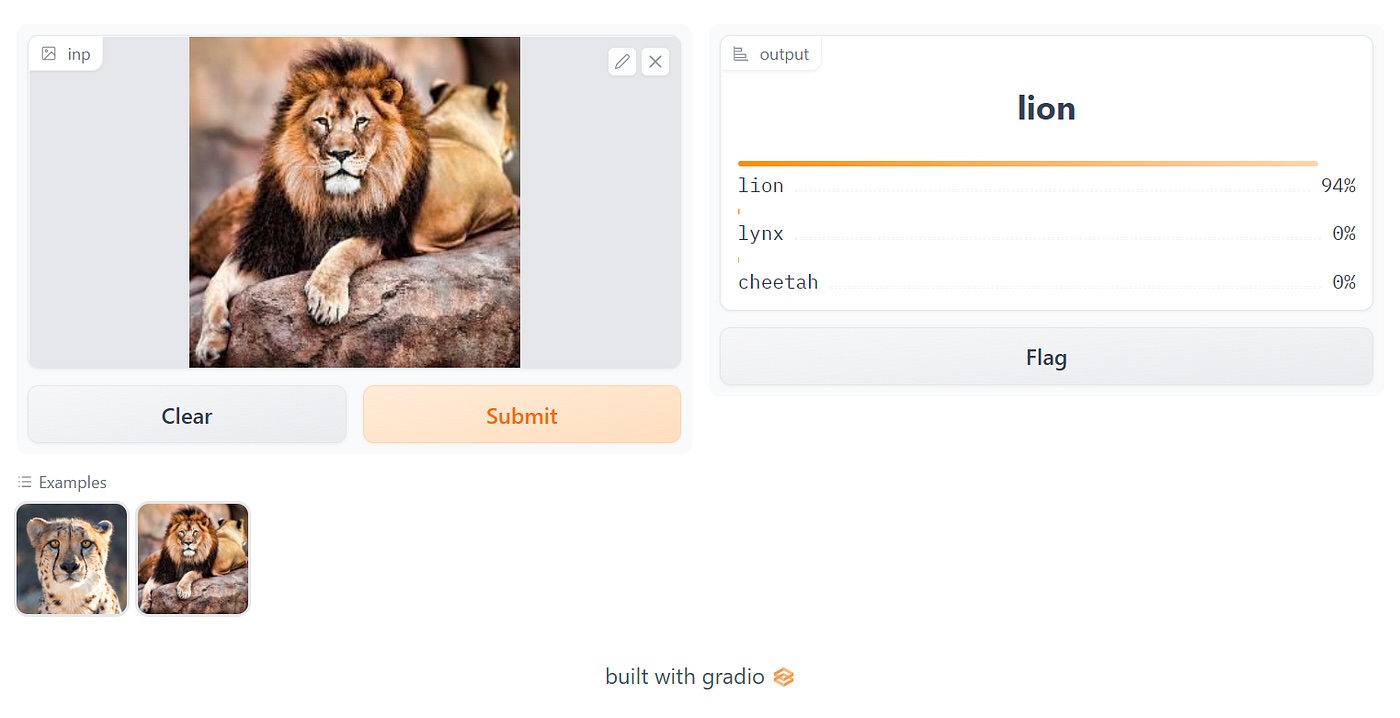
Gradio is a Python library, maintained by Hugging Face, that wraps your function in a small web app — usually in just a few lines of code. You tell it what goes in (a text box, an image upload, a microphone) and what comes out (text, an image, a label), and Gradio builds the whole browser interface for you. No HTML, no JavaScript, no CSS. You hand it a Python function; it hands you a shareable demo.
Think of your model as a coffee machine that only you know how to operate — exposed wiring, no buttons, a manual full of jargon. Gradio is the plastic shell with two clearly labelled buttons and a cup-sized slot. The machine inside is unchanged; Gradio just bolts on the friendly front panel so anyone can press go and get a result.
Why it matters
The gap between "my model works in a notebook" and "someone else can try my model" is surprisingly wide. Closing it normally means writing a backend API, a frontend, request handling, and deployment — a project bigger than the model itself. Gradio collapses that gap into a few lines, which matters for a few concrete reasons.
- Speed from model to demo. Wrapping a function takes minutes, not days. You can validate an idea, get feedback, or screenshot a working UI before lunch — without becoming a web developer first.
- Sharing without deploying. Gradio can hand you a temporary public link to a demo running on your own machine. You paste it into a chat and a teammate across the world tries your model in their browser, with no server setup on either side.
- The standard for ML demos. Because Hugging Face maintains it, Gradio is the native way to publish a live demo on Hugging Face Spaces. A huge fraction of the interactive model demos you meet online are Gradio apps.
- Right-sized inputs for AI. Gradio ships with components built for the data AI actually uses — image and audio uploads, a webcam feed, a chatbot window, a file drop. You rarely have to hand-build the widget your model needs.
Who should care? Anyone with a model and an audience: researchers attaching a "try it here" link to a paper, engineers collecting feedback on a prototype, teachers letting students poke at a model, and hobbyists publishing a fun demo. If the goal is let people interact with this model, Gradio is usually the shortest path there.
How it works
At its core, Gradio does one thing: it turns a Python function into a web UI by sitting between a browser and your code. You describe the function's inputs and outputs using Gradio's component types, and it generates a frontend, runs a small web server, and wires the two together.
The Interface: one function, in and out
The simplest entry point is gr.Interface. You give it three things: the function to call (fn), what the inputs look like (inputs), and what the output looks like (outputs). Gradio reads those and builds a page with the matching widgets. When a user fills the inputs and clicks submit, Gradio collects the values, calls your function with them, and renders whatever it returns into the output components.
Here is the whole idea in one runnable file. The function is ordinary Python; the Gradio-specific part is just the last few lines.
import gradio as gr

# 1) An ordinary Python function. Knows nothing about the web.
def greet(name, intensity):
    return "Hello, " + name + "!" * int(intensity)

# 2) Wrap it in an interface: describe inputs + outputs.
demo = gr.Interface(
    fn=greet,
    inputs=["text", gr.Slider(1, 5, step=1)],
    outputs=["text"],
)

# 3) Launch a local web server. Add share=True for a public link.
demo.launch()
Run that file and Gradio prints a local URL (something like http://127.0.0.1:7860). Open it and you get a real web page: a text box, a slider, a submit button, and an output box — none of which you wrote. The inputs list maps position-by-position to your function's arguments, and the outputs list maps to its return values.
Components: the input and output building blocks
Each widget is a component. You can name them as strings for the defaults ("text", "image", "audio") or use the class form like gr.Image() or gr.Slider() to configure them. The component you choose decides what Python type your function receives: an Image component hands your function a NumPy array or a file path; an Audio component hands it a sample rate and waveform; a Textbox hands it a string.
Sharing: the public link
Call demo.launch(share=True) and Gradio creates a temporary public URL that tunnels back to the app still running on your machine. Anyone with the link can use your model from their browser. It is perfect for a quick "can you try this?" — and a key reason Gradio spread so fast — but the link is short-lived and the work still happens on your computer, so it is a demo tool, not hosting.
Interface vs Blocks: two ways to build
Gradio gives you two levels of control. gr.Interface is the fast path for the common case — one function, inputs on one side, outputs on the other. When you need a custom layout, multiple functions, or components that update each other, you reach for gr.Blocks, a lower-level API where you arrange the page and wire each event by hand.
- One function, in → out
- Layout chosen for you
- A few lines of code
- Best for a quick model demo
- Hard to customize deeply
- Many functions and events
- You design the layout
- More code, more control
- Best for multi-step or custom apps
- Rows, columns, tabs, custom flows
A practical rule: start with Interface. If you hit a wall — you want two buttons doing different things, a tabbed layout, or one component's output feeding another's input — graduate to Blocks. There is also a ready-made gr.ChatInterface that wraps a chat function into a full chatbot UI, which is the quickest way to demo an LLM and a natural next step after a chatbot built on an LLM API.
Gradio vs Streamlit: which one and when
The two libraries beginners weigh against each other are Gradio and Streamlit. Both let you build a web UI in pure Python, but they think about your app very differently, and that difference points each at a different job.
| Gradio | Streamlit | |
|---|---|---|
| Core idea | An interface wraps a function | A script re-runs top to bottom |
| Sweet spot | Demoing a single model | Dashboards and multi-element apps |
| AI components | Built-in (image, audio, chatbot) | General-purpose widgets |
| Native sharing | Public link + Hugging Face Spaces | Streamlit Community Cloud |
| Mental model | Define inputs and outputs | Write a page as a linear script |
The cleanest way to choose: if your app is essentially "take this input, run my model, show the result," Gradio gets you there with the least code and the AI-shaped widgets already built in. If your app is more of a page — several charts, controls, text, and sections that all live together — Streamlit's script-as-app model fits better. Read more in what is Streamlit. Neither is better; they are tuned for different shapes of project, and many people happily use both.
Common pitfalls
Gradio is forgiving, but a handful of mix-ups trip up almost everyone the first time.
- Mismatched inputs and outputs. The
inputslist maps position-by-position to your function's arguments, andoutputsto its return values. Two inputs but a one-argument function, or two return values but one output, produces confusing errors. Count both sides. - Wrong data type assumptions. An
Imagecomponent does not hand your function a file you have to open — it hands you a NumPy array (or a path, depending on itstypesetting). Check what each component actually passes before you write the function body. - Treating share links as hosting.
share=Trueonly works while your script keeps running, and the link expires. For a demo that stays up, deploy to Hugging Face Spaces instead of leaving your laptop on. - Forgetting it is single-process by default. A heavy model loaded inside your function reloads or blocks under concurrent users. Load the model once at the top of the script (outside the function) so every request reuses it.
- Expecting production hardening for free. Gradio gets you a demo, not authentication, rate limiting, or scaling. Add those yourself, or front the model with a real service, before exposing anything sensitive.
Going deeper
The basic Interface is the front door; the rest of Gradio is about reach, polish, and control once a demo earns it.
Streaming outputs. For LLM chat, you don't want the user staring at a frozen page while a long answer generates. Gradio supports streaming: your function can yield partial results, and the UI updates token-by-token, the same typewriter effect you see in production chatbots. This pairs naturally with the streaming responses an LLM API already provides.
Blocks, events, and state. With gr.Blocks you wire specific events — a button click, a textbox change, an upload — each to its own function, and you can keep per-session gr.State so a chat remembers earlier turns. This is how a simple demo grows into a small multi-step app without ever leaving Python.
Embedding and the API. A launched Gradio app is also callable as an API: other code can hit it programmatically, and you can embed the UI in an existing web page. That makes a Gradio demo a reusable building block, not just a one-off page — handy when you want to bolt a model onto an existing app.
Where to go next. The natural progression is: wrap a model with gr.Interface, customize the layout with gr.Blocks, then deploy it for free on Hugging Face Spaces so it has a permanent home. If you are still choosing what to build, the AI project ideas guide pairs well with Gradio as the UI layer. The honest limit to keep in mind: Gradio is unbeatable for getting a model in front of people quickly, but a serious product eventually needs a real backend and frontend — treat Gradio as the demo stage, not the finished theatre.
FAQ
What is Gradio used for?
Gradio is a Python library for building a web interface around a machine-learning model or any function, usually in a few lines. It is mainly used to create quick, shareable demos so other people can try your model in a browser without installing anything.
Is Gradio free?
Yes. Gradio is open-source and free to use, and it is maintained by Hugging Face. You can also deploy Gradio apps for free on Hugging Face Spaces using its CPU tier, though GPUs and higher tiers can cost money.
What is the difference between Gradio and Streamlit?
Gradio wraps a single function in an interface (inputs → your function → outputs), which is ideal for demoing one model. Streamlit treats your whole script as the app, re-running it top to bottom, which suits dashboards and multi-element pages. Use Gradio for a model demo, Streamlit for a richer app page.
How do I share a Gradio app with others?
Call demo.launch(share=True) to get a temporary public link that tunnels to the app running on your machine — good for a quick try-it. For a permanent home, deploy the app to Hugging Face Spaces, which gives it a stable URL that stays up without your computer running.
Can Gradio handle images, audio, and chat?
Yes. Gradio ships components for text, images, audio, video, files, and a dedicated chatbot UI (gr.ChatInterface). You pick the input and output components that match your model's data, and Gradio builds the matching widgets automatically.
Is Gradio suitable for production apps?
Gradio is built for demos and prototypes, not high-traffic production. It lacks built-in authentication, rate limiting, and scaling, and share links are temporary. For a real product, use Gradio to validate the idea, then move the model behind a proper backend.