In plain English
ComfyUI is a free, open-source program for running AI image models on your own computer. The twist is in how you tell it what to do. Instead of a simple form with a prompt box and a Generate button, ComfyUI gives you a node graph: a canvas of little boxes you wire together with cables. Each box does one job, the cables carry data from one box to the next, and the whole chain of boxes is your image-generation recipe.
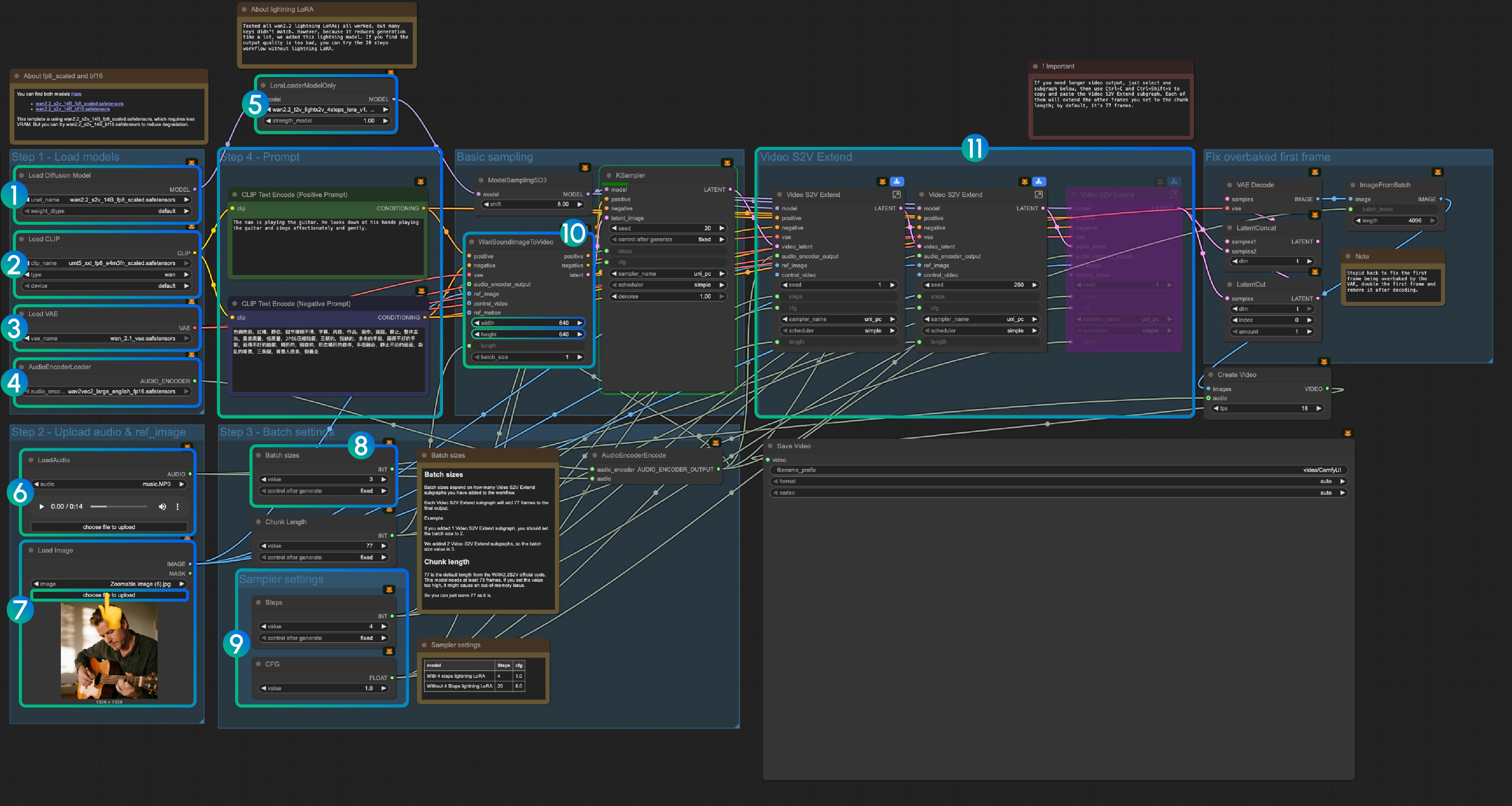
Think of it like a kitchen built from connected machines rather than a single microwave. A microwave has one button — fast, but you get exactly what it gives you. ComfyUI is the line of machines where you can see the dough being mixed, shaped, proofed, and baked, and you can swap any machine, tap any pipe, or reroute the conveyor belt. More to set up, far more control over the result.
One thing to be clear about from the start: ComfyUI is not an image model. It does not know how to draw anything by itself. It is the engine that runs other people's models — open-weight families like Stable Diffusion, SDXL, FLUX, and many more. You download a model file, load it into a node, and ComfyUI orchestrates the steps that turn your prompt into a picture.
Why it matters
Most beginner image tools give you a prompt box and hide everything else. That is great until you want something the form does not expose — and serious image work almost always needs something the form does not expose. ComfyUI matters because it turns the hidden pipeline into something you can see, edit, and rearrange.
- Total control. You decide exactly which model loads, which sampler runs, how many steps, which ControlNet guides the composition, which LoRA adjusts the style, and where each piece plugs in. Nothing is decided for you behind a button.
- Reproducible, shareable workflows. A ComfyUI graph is the recipe. Save it and you can rerun the exact same pipeline tomorrow, or hand the file to someone else and they get your setup — model loaders, prompts, samplers, and all — without a written tutorial.
- Runs locally and free. It is open-source and runs on your own hardware, so there is no subscription, no per-image fee, and your images and prompts never leave your machine. With the right model files you can work fully offline.
- One tool, many models. Because it is an engine rather than a single model, the same ComfyUI install can drive Stable Diffusion, SDXL, FLUX, and newer families as they appear — you swap the model file, not the whole app.
Who cares about this? Power users, artists chaining many steps, and developers building image pipelines. If you just want one quick picture, a form-based tool is faster. But the moment you need a repeatable, customized, multi-stage process — generate, then upscale, then fix a face, then composite — a visual graph beats a wall of hidden settings. That is why ComfyUI became the de facto power-user standard for open-weight image generation.
How it works
Under the hood, ComfyUI is a graph executor. You place nodes on a canvas and connect their inputs and outputs. When you hit run, ComfyUI works out the order the nodes must fire in, then passes data down the cables — text, numbers, and most importantly tensors (the big arrays of numbers that models read and write) — from one node to the next until an image pops out the far end.
Nodes, edges, and the latent image
Every node is a small unit of work with typed sockets. A Load Checkpoint node reads a model file and outputs the model plus its text encoder and VAE. A CLIP Text Encode node turns your prompt words into numbers the model understands. A KSampler node is the heart of generation: it takes the model, the encoded prompt, and a block of random noise, and runs the diffusion denoising loop for a set number of steps. Its output is still not a viewable picture — it is a compact latent image. Finally a VAE Decode node expands that latent into real pixels, and a Save Image node writes the file.
The cables enforce types: a socket that expects a model will only accept a model output, so you cannot accidentally feed a prompt where a model belongs. This is why the graph reads almost like a wiring diagram — the connections are the program.
Why a graph instead of a script
Everything ComfyUI does could be written as Python code. The graph is just a friendlier, visual way to express the same pipeline. The payoff is that you can rewire it live: drop a ControlNet node between the prompt and the sampler to control composition, splice an upscaler after the decode, or branch the output two ways. ComfyUI is also smart about reruns — if you only change the prompt, it reuses the cached results of nodes that did not change, so it re-executes just the part of the graph that was affected.
ComfyUI vs simple form-based UIs
The usual comparison is ComfyUI versus a form-based interface such as the classic AUTOMATIC1111 web UI, where you fill in fields and press Generate. Neither is strictly better — they trade simplicity for control.
| Aspect | ComfyUI (node graph) | Form-based UI |
|---|---|---|
| Mental model | Wire a pipeline of nodes | Fill in a fixed form |
| Control | Every stage is exposed and rearrangeable | Only what the form chooses to show |
| Learning curve | Steeper — you learn the pipeline | Gentle — type a prompt and go |
| Reproducibility | Whole workflow saves as one file | Settings, but not the structure |
| Best for | Custom, multi-step, repeatable pipelines | Quick single images, beginners |
| Sharing | Send the graph, get the exact setup | Re-enter settings by hand |
A useful rule of thumb: if you can describe what you want as type a prompt, get a picture, a form is faster. If you find yourself wishing you could insert a step, reuse part of a process, or run the same complex chain a hundred times, that is exactly when the node graph earns its extra setup cost.
A typical workflow in practice
Here is how a real session tends to grow. You start from the basic six-node graph above, confirm it produces an image, then add stages one at a time — each new node a new capability.
- Base generation. Load a checkpoint, encode a positive and a negative prompt, sample, decode, save. This is the skeleton.
- Add a LoRA. Insert a LoRA loader to nudge the style or subject without swapping the whole model — useful for a consistent character or art style.
- Add ControlNet. Feed a pose or edge map through a ControlNet node so the composition follows a reference instead of pure chance.
- Add img2img or inpainting. Route an existing image into the latent so generation builds on it, or mask a region to redo just that area — see inpainting and outpainting.
- Add an upscaler. Chain an upscale node after the decode to push the final image to a higher resolution.
Crucially, you do not rebuild from scratch each time. Once a sub-graph works — say a reliable upscale-and-sharpen tail — you keep it and reuse it. Over time you accumulate a library of workflows for different jobs, which is the real productivity win of the node approach.
Common pitfalls
ComfyUI's flexibility is also where beginners stumble. Most early frustration is not the model failing — it is the graph being wired or configured slightly wrong.
- Mismatched model files. A workflow built for one model family (say SDXL) often will not run on another (say FLUX) without swapping several nodes. A graph that errors out frequently expects a model you do not have loaded.
- Forgetting the VAE decode. The sampler outputs a latent, not a picture. Skip the decode and you get nonsense or nothing — a very common first-day confusion.
- Copying a workflow whose custom nodes you lack. Shared graphs may reference community nodes you have not installed; the canvas shows red, broken nodes until you add the missing extensions.
- Out-of-memory errors. Large models, high resolutions, and long node chains all consume GPU memory. Generation that works at one size can fail when you raise the resolution or add stages.
- Over-building. Not every task needs a 40-node masterpiece. If a five-node graph does the job, resist bolting on stages you do not actually need.
Going deeper
Once the basics click, the node model opens up in ways a form never could. A few directions worth knowing.
API and automation. Because a workflow is just JSON describing nodes and connections, ComfyUI can run headless and be driven over an API. Developers wire it into larger applications, batch-generate thousands of images, or expose a custom graph as a service — the same pipeline you designed visually, now called by code.
Beyond still images. The node model is general. The ecosystem has extended it to video frames, audio, 3D, and other model types, all expressed as the same graph-of-nodes idea. Anything that can be framed as data flowing through transforming steps fits the paradigm.
Writing your own nodes. A custom node is, in the end, a Python class with declared input and output sockets and a function that does the work. If a capability does not exist yet, you can add it and it becomes a first-class box on the canvas like any other — which is how the community keeps the tool current with new models.
Where to go next: solidify your grasp of what the engine is actually running. Understand how diffusion models turn noise into images, how Stable Diffusion and SDXL are structured, and how guidance tools like ControlNet and techniques like inpainting work. ComfyUI is the steering wheel; those topics are the engine it steers.
FAQ
Is ComfyUI free?
Yes. ComfyUI is open-source and free to download and run on your own computer. There is no subscription and no per-image cost. You do need your own hardware (ideally a GPU) and to supply the model files you want to run, but the software itself costs nothing.
Is ComfyUI an AI model?
No. ComfyUI is an engine that runs image models — it does not generate anything by itself. You load open-weight models such as Stable Diffusion, SDXL, or FLUX into it, and ComfyUI orchestrates the steps that turn your prompt into an image.
ComfyUI vs AUTOMATIC1111 — what's the difference?
AUTOMATIC1111 is a form-based web UI: you fill in fields and press Generate. ComfyUI is a node-graph UI where you wire up the pipeline visually. ComfyUI gives far more control and reproducibility but has a steeper learning curve; the form-based UI is quicker for simple one-off images.
Is ComfyUI hard to learn?
It is harder than a prompt-and-button tool because you have to understand the pipeline — checkpoints, samplers, latents, and the VAE decode. But the basic text-to-image graph is only a handful of nodes, and most people start from a shared workflow and modify it rather than building from scratch.
Can I run ComfyUI locally and offline?
Yes. ComfyUI runs on your own machine, so once you have downloaded the model files you need, you can generate images fully offline. Your prompts and images stay local and never leave your computer.
What is a ComfyUI workflow file?
It is a JSON file describing every node in your graph and how they connect. It captures the whole recipe, so loading it rebuilds your exact pipeline. ComfyUI can even embed the workflow inside a generated PNG, so dragging that image onto the canvas restores the graph that made it.